
.jpg) 2 hours ago
3
2 hours ago
3

The Mounts of Mayhem update is here, and players are wondering how they can use shaders in Minecraft 1.21.11. These packs can alter the visual identity of the game, transforming the vanilla world into endless universes. So, it comes as no surprise that gamers want to try their favorite visual styles on the new mobs like nautilus and camel husks.
Here's how you can use shaders in Minecraft 1.21.11 and yearn for the mines in style.
Guide to using shaders in Minecraft 1.21.11
Most shaders in Minecraft are designed to be used with Iris Shaders and OptiFine, two of the most popular mods for installing and using these visual addons. While Iris is popular for its visually pleasing and intuitive user interface, OptiFine boasts a massive repository of supported packs and PBR assets.
Here's how you can use both to download and install shaders in Minecraft 1.21.11:
Minecraft 1.21.11 Iris Shaders guide
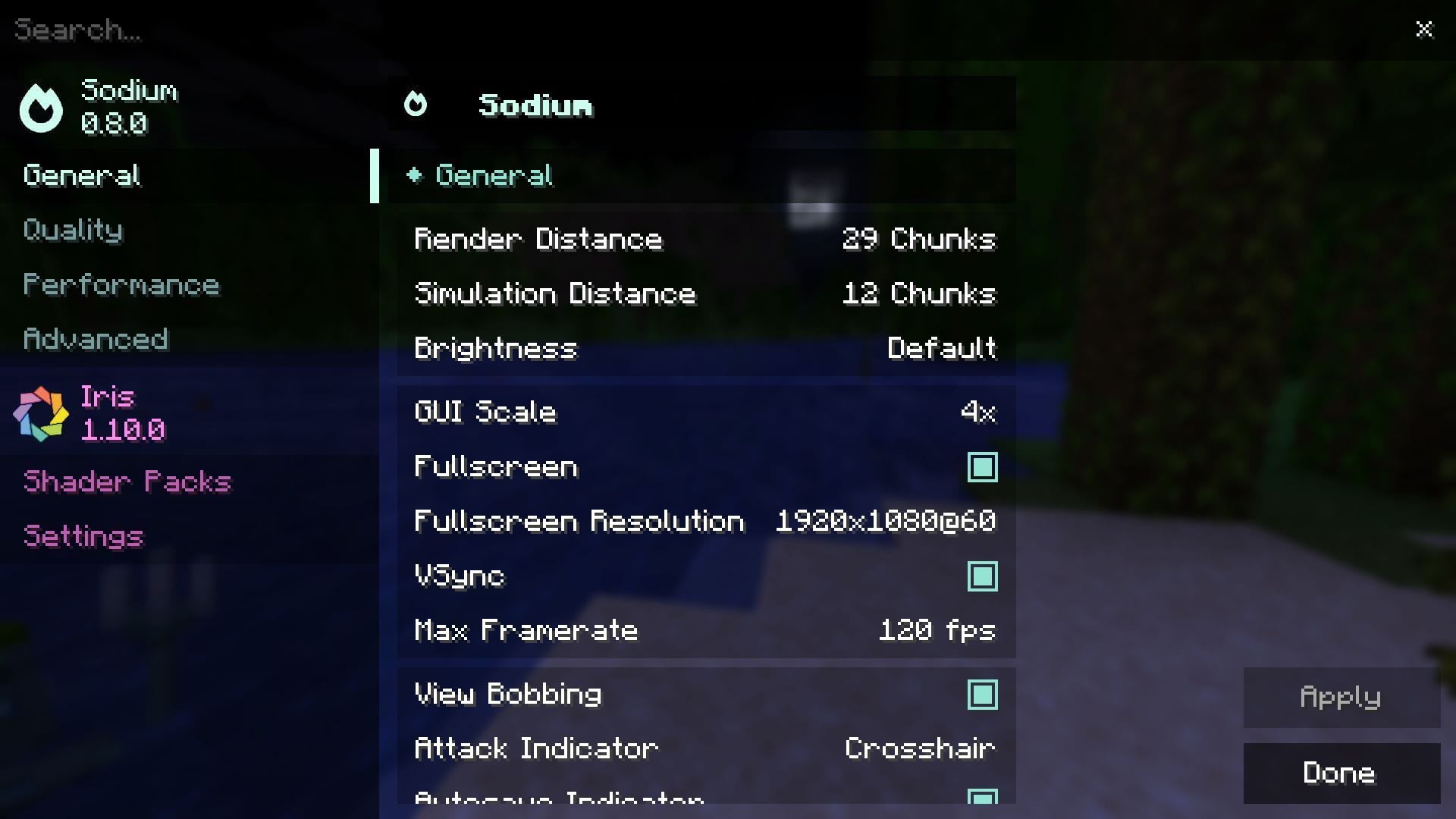 Iris Shaders is one of the most popular choices to use shaders in Minecraft 1.21.11 (Image via Sportskeeda Gaming || Mojang Studios)
Iris Shaders is one of the most popular mods for installing and using shaders in Minecraft 1.21.11. The user-friendly interface and support for other mods like Distant Horizons and Nvidium make it a popular choice for casual hobbyists and hardcore modpack builders.
To get started, head over to the official Iris Shaders website and download the universal JAR for Iris Shaders. Now, follow these steps:
- Run the JAR and make sure to select 1.21.11 as the version. If you have Fabric 1.21.11 installed, you can skip the bundled installation of Iris+Fabric. However, if you do not have the API, it is recommended to download the combination since it is a necessary dependency.
- Ensure that the installation directory is set to .minecraft.
- Once done, click the Install button to finish installing Iris Shaders on your device.
After you are done installing Iris Shaders, follow these steps to use shaders in Minecraft 1.21.11:
- Download a shader of your choice from popular mod repositories like CurseForge or Modrinth.
- Open the instance of Minecraft where Iris Shaders was installed.
- Head to the Options menu on the loading screen.
- Navigate to the Video settings tab. This will take you to the main Iris Shaders interface, with an array of customization options.
- Now, click the Shader Packs tab in the right corner.
- Click on the Open Shader Pack Folder button, which will open up the shaders directory.
- Next, drag and drop your downloaded shaders into this folder.
- Head back to the game. You will notice that the shader(s) you placed in the folder are now displayed in the list of available options.
- Click on the shader you wish to use and select the 'Apply' button to apply and activate the modifications.
Once you are done, wait for a few seconds while the shader and the necessary assets from the pack get applied to your world. The screen might appear frozen for a while, but it is recommended to wait. Next, head over to the loading screen and create a new world or load an existing one to experience the visual changes introduced by the shaders in Minecraft 1.21.11.
Also read: This Minecraft mod reimagines death in the game
Minecraft 1.21.11 OptiFine guide
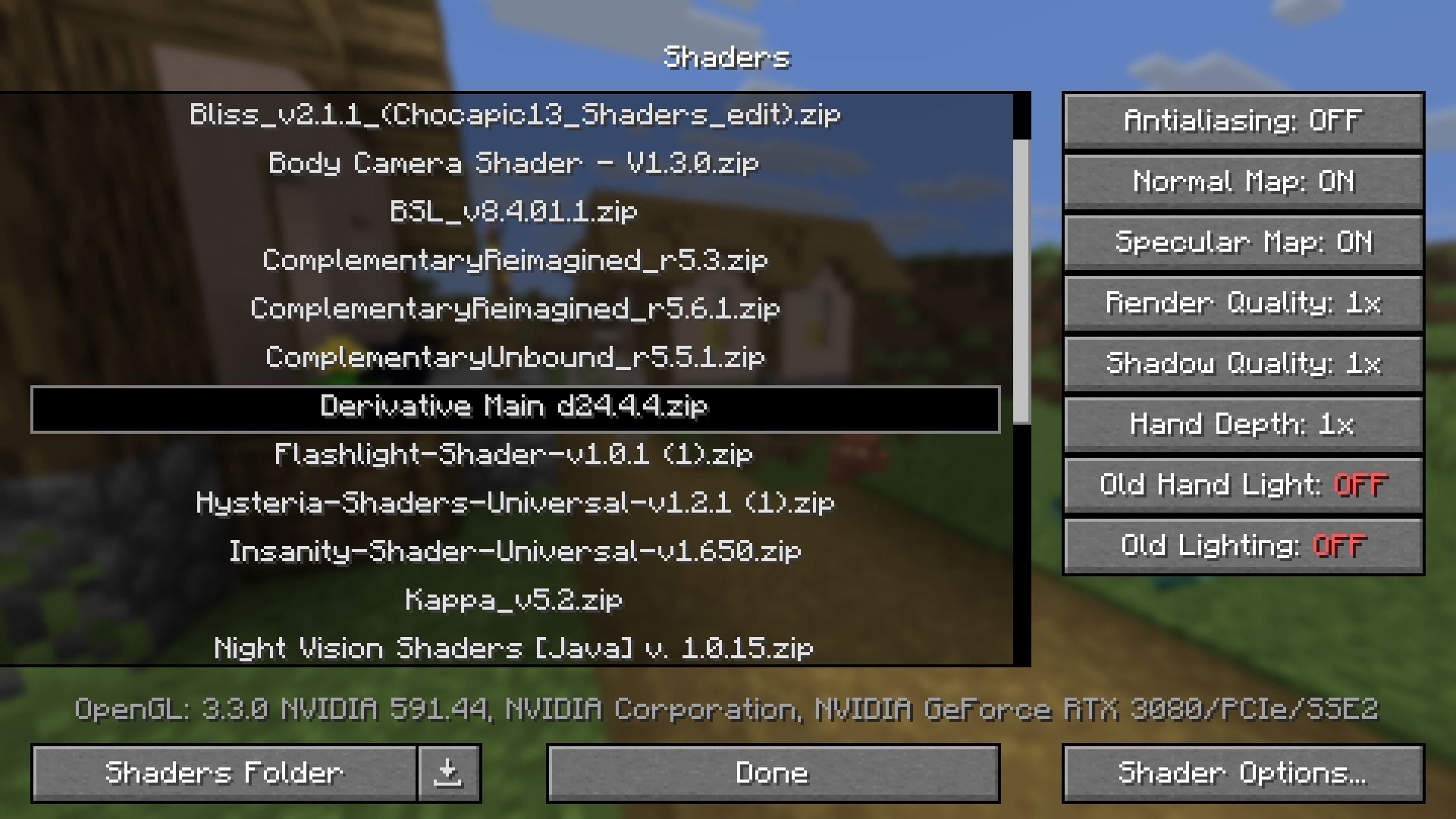 OptiFine is a great choice to install shaders in Minecraft 1.21.11 (Image via Sportskeeda Gaming || Mojang Studios)
Just like Iris Shaders, OptiFine is widely used by players standalone or as part of modpacks due to its optimization features, enhanced frame rates, and intricate customization options. While the UI might not be as flashy as Iris, it provides a robust platform for installing and using some of the best shaders in Minecraft 1.21.11.
Head over to the official OptiFine website and get the Minecraft 1.21.11 OptiFine file. Once done, follow these steps to install the mod:
- Download the latest OptiFine preview under the tab and run the Jar file.
- Once the installer opens, select Install. Additionally, if you wish to change the installation directory, you can click on the three dots on the right and make the necessary changes.
- Next, click Install and wait till you get a confirmation pop-up box stating OptiFine 1.21.11 has been installed.
- Head over to the Minecraft launcher and check if Minecraft 1.21.11 Optifine is showing up on the list of available instances under Java edition.
Once you are done installing OptiFine and locating it, simply run the mod and follow these steps to use shaders in Minecraft 1.21.11:
- Download a shader of your choice from online repositories like Curseforge or Modrinth.
- Open the instance of Minecraft with Optifine installed.
- Make your way to the Options menu on the Minecraft loading screen.
- Now, select the Video settings menu and click on the Shaders button.
- Click the Shader Folder button at the bottom, which will open up the shaders directory.
- Next, drag and drop your downloaded shader(s) into this folder. You can skip this step if you already have shaders available.
- Close the folder and head back to Minecraft. You will notice that the shader(s) you placed are now displayed in the list. Additionally, you can also click on the download icon next to the Shader Folder button to access a list of popular shaders curated by Shaderlabs.
- Select your desired shader from the list and wait a few moments while it gets applied.
- Click done and head back to the game to enjoy the new visual enhancements brought by the pack.
Also read: How to download Minecraft 1.21.11 Iris Shaders
Check out our other Minecraft articles:
- How to get and use the Reese's Sodium Options mod
- This Minecraft mod reimagines death in the game
- How to get boss mob spawn eggs in Minecraft
- How to sort items using a copper golem in Minecraft
- 4 best Minecraft mods to bring mobs to life
- All the Minecraft fishing enchantments explained
Why did you not like this content?
- Clickbait / Misleading
- Factually Incorrect
- Hateful or Abusive
- Baseless Opinion
- Too Many Ads
- Other
Was this article helpful?
Thank You for feedback
Edited by Sayendra Basu
 English (US)