
.jpg) 1 hour ago
2
1 hour ago
2

The new Mounts of Mayhem drop is here, and players are looking to install Minecraft 1.21.11 Optifine to add an array of shaders to their vanilla worlds. OptiFine is one of the most popular mods for adding and using shaders, replacing the regular aesthetic with a host of new visual overhauls.
Here's how you can download and install Minecraft 1.21.11 Optifine.
Note: OptiFine 1.21.11 is currently experimental. Players are requested to proceed with caution as the game might crash or shut down unexpectedly. If you do not see the Preview listed, wait for the developers to upload the latest build.
Guide to install Minecraft 1.21.11 Optifine
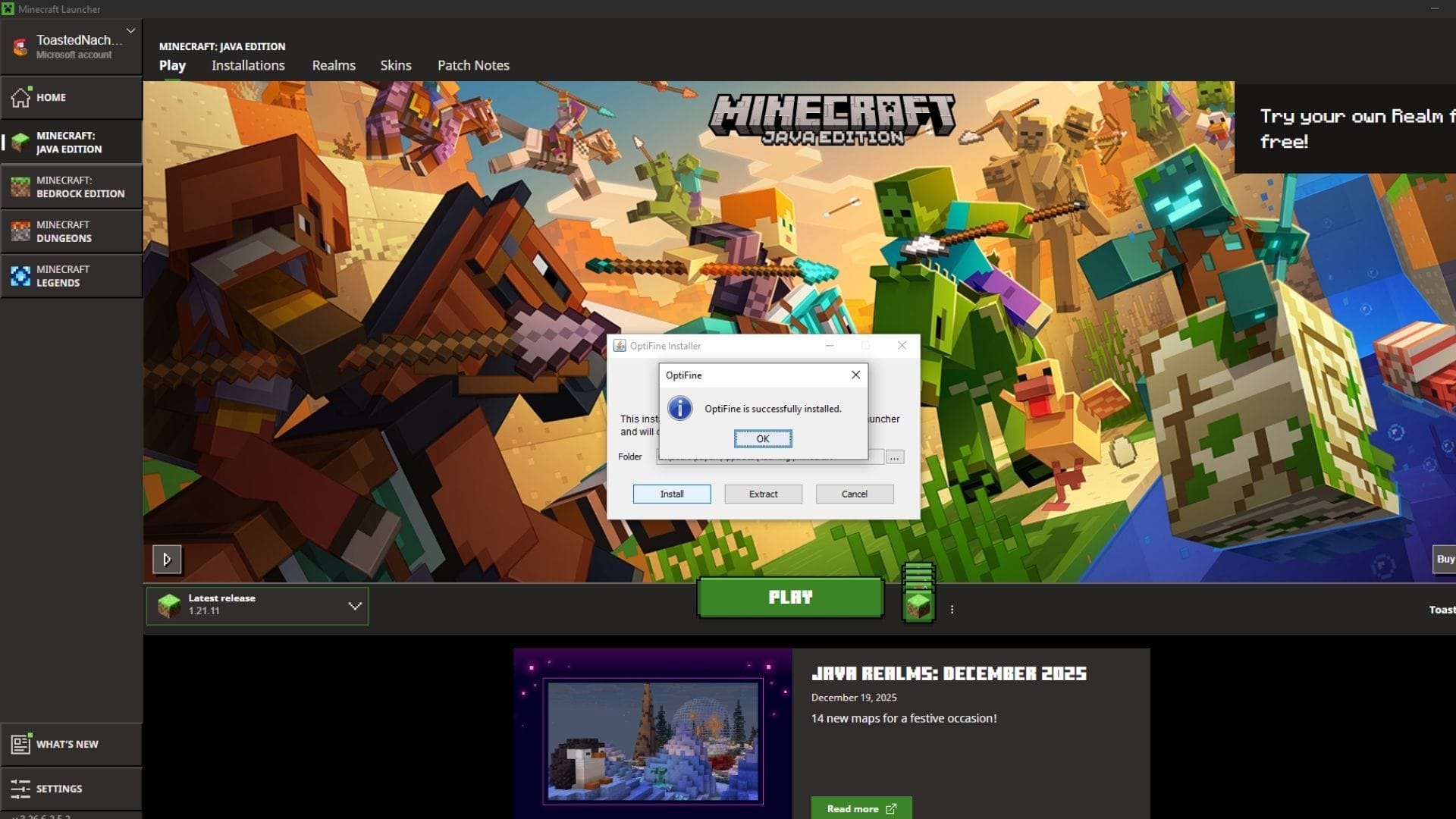 Use the official launcher to download and install Minecraft 1.21.11 Optifine (Image via Sportskeeda Gaming || Mojang Studios/OptiFine)
Minecraft 1.21.11 OptiFine can be installed using the official installer found on their website. As of now, OptiFine has released a preview version that is compatible with the latest Mounts of Mayhem game drop, introducing support for new mobs and items such as the nautilus and the camel husk.
Here's how you can download and install Minecraft 1.21.11 Optifine:
- Head over to the OptiFine download website.
- Under Minecraft 1.21.11, click the Preview Versions tab and expand it.
- Download the latest OptiFine preview under the tab and run the Jar file.
- Once the installer opens, select Install. Additionally, if you wish to change the installation directory, you can click on the three dots on the right and make the necessary changes.
- Next, click Install and wait till you get a confirmation pop-up box stating OptiFine 1.21.11 has been installed.
- Head over to the Minecraft launcher and check if Minecraft 1.21.11 Optifine is showing up on the list of available instances under Java edition.
Also read: 2025 was the most spectacular year for Minecraft
How to use Minecraft 1.21.11 Optifine
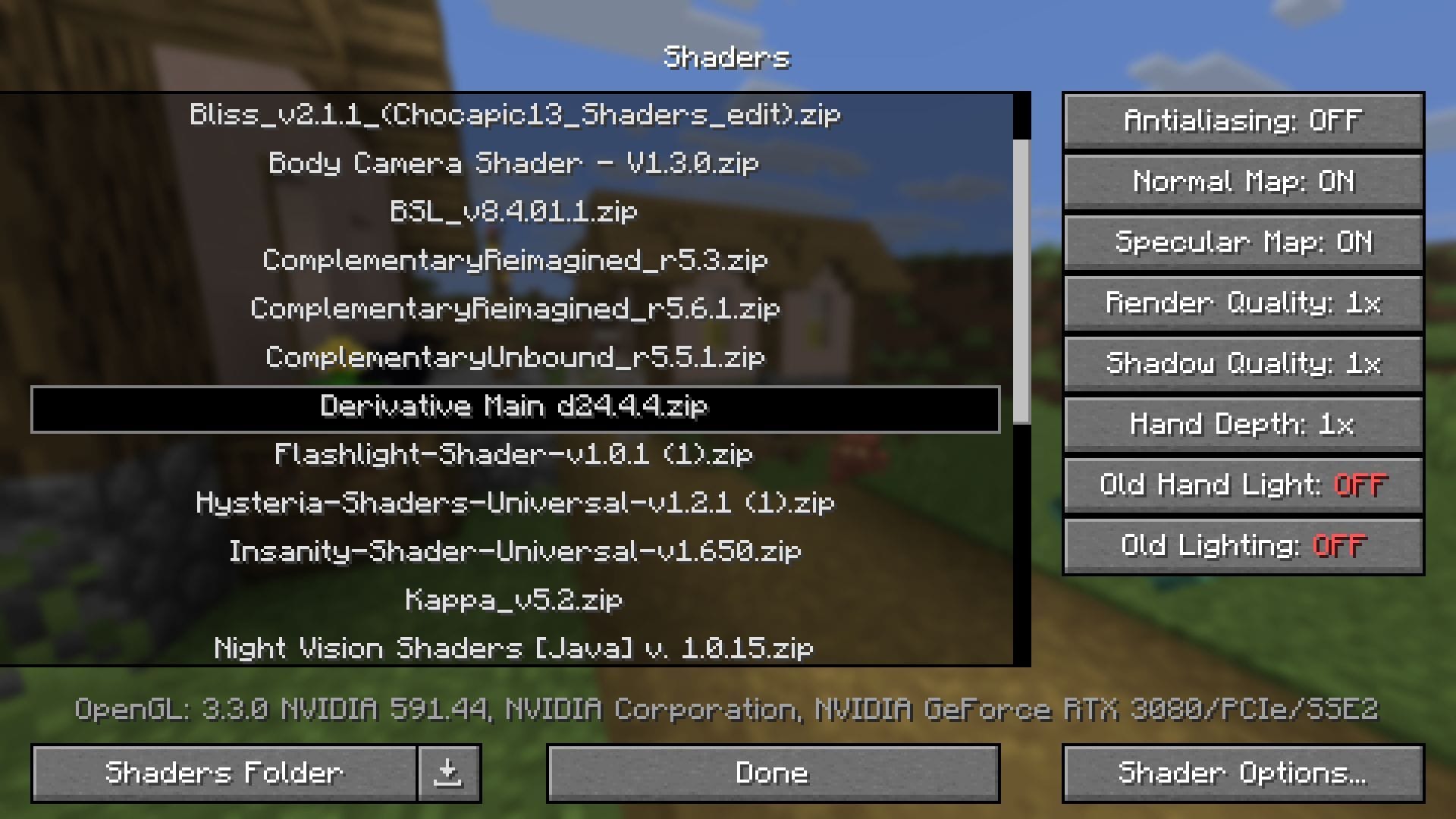 Use Minecraft 1.21.11 Optifine to apply your favorite shaders (Image via Sportskeeda Gaming || Mojang Studios)
Once you have installed OptiFine, head to the Minecraft launcher and select the Java edition of the game. Now, navigate to and select the instance with Optifine 1.21.11 installed. It is usually the latest one selected after you open the launcher once you are done with installation.
Once you have found the instance with Minecraft Optifine for 1.21.11 installed, run it and follow these steps:
- Download a shader of your choice from online repositories like Curseforge or Modrinth.
- Open the instance of Minecraft with Optifine installed.
- Make your way to the Options menu on the Minecraft loading screen.
- Now, select the Video settings menu and click on the Shaders button.
- Click the Shader Folder button at the bottom, which will open up the shaders directory.
- Next, drag and drop your downloaded shader(s) into this folder. You can skip this step if you already have shaders available.
- Close the folder and head back to Minecraft. You will notice that the shader(s) you placed are now displayed in the list. Additionally, you can also click on the download icon next to the Shader Folder button to access a list of popular shaders curated by Shaderlabs.
- Select your desired shader from the list and wait a few moments while it gets applied.
- Click done and head back to the game to enjoy the new visual enhancements brought by the pack.
Additionally, you can click on a Shader and then select the Shader options button on the bottom-right to modify the settings of a pack to suit your requirements. Most packs will offer you options that allow you to fine-tune and modify aspects such as lighting, fog, water behavior, and more. Once you are satisfied with the changes, click Done and save your changes to apply them.
Now, you can enjoy the latest mounts like nautilus and camel husks, powered by the visual enhancements of your favorite shader. Since the OptiFine build is still in the experimental stage, it is recommended to create a backup of your world before you run.
Also read: How to download Minecraft 1.21.11 Iris Shaders
Check out our other Minecraft articles:
- How to get and use Reese's Sodium Options mod
- This Minecraft mod reimagines death in the game
- How to get boss mob spawn eggs
- How to sort items using a copper golem
- 4 best mods to bring mobs to life
- All the Minecraft fishing enchantments explained
Why did you not like this content?
- Clickbait / Misleading
- Factually Incorrect
- Hateful or Abusive
- Baseless Opinion
- Too Many Ads
- Other
Was this article helpful?
Thank You for feedback
Edited by Sayendra Basu
 English (US)