The picture may look great, but that doesn’t mean you’re getting the full experience.
lilgrapher/Shutterstock
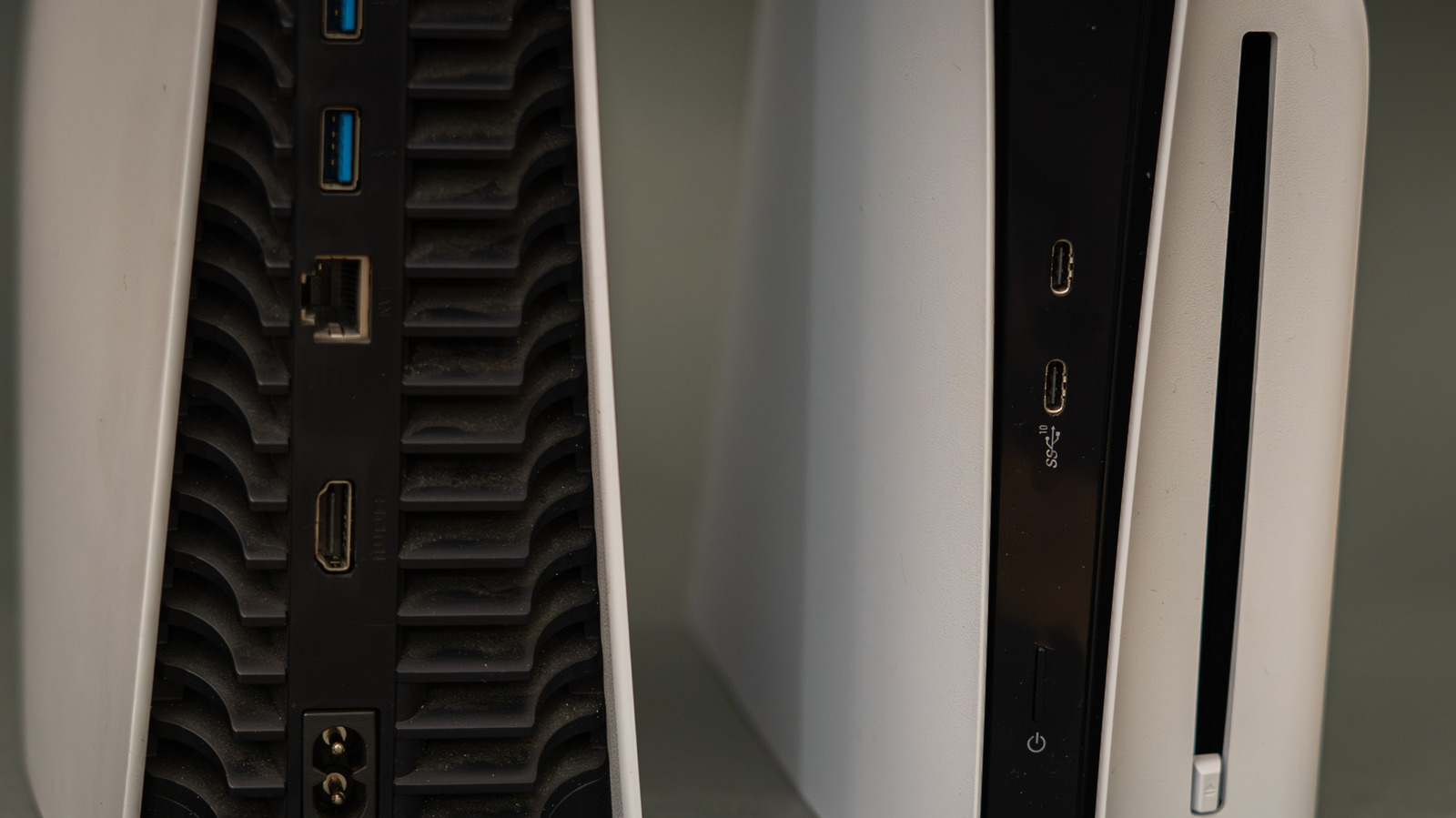
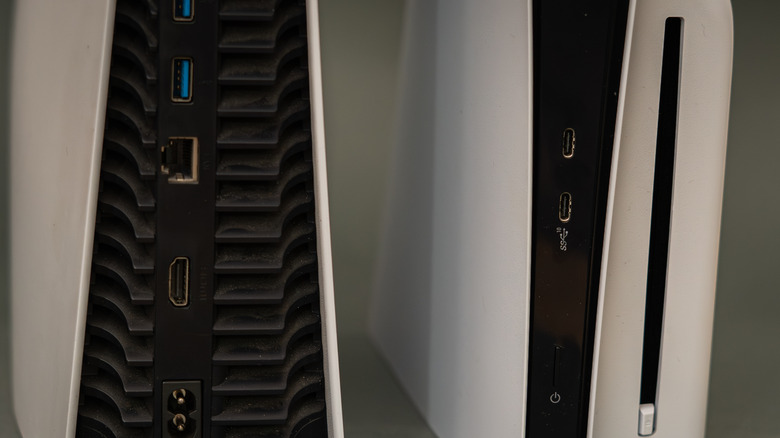
A PlayStation 5 can display a good picture even while connected to an HDMI port that's limiting its capabilities, which is a simple mistake to make. Most TVs and monitors come with multiple HDMI ports, each with tiny labels that are hard to read — assuming they're even present and situated where you can see them. If there is no label, you'll have to look up the specs for your brand and model. The PS5 console supports HDMI 2.1 for 4K output at 120Hz, among other gaming features, but accessing that requires both a compatible screen and the right output.
It's worse if you like to bring your PS5 around the house and set it up on different TVs, because each brand and model features different HDMI arrangements. Never assume that the same set of port numbers means the same specs, even if every TV in the house is from the same brand. For max benefit, check the specs for your exact model and look for an HDMI 2.1 input that supports 4K at 120Hz. On most TVs (not all), HDMI 2.1 ports are the third or fourth option.
Your choice of cable is also important. Sony recommends using the HDMI cable that comes with the PS5, or another high-quality Ultra High Speed (HDMI 2.1) cable. It's best to plug the cable directly into the screen or TV without a soundbar or similar between them. For the most part, that's all it takes. A PS5 console and TV can't provide peak signal support if the port, cable or intermediary equipment is getting in the way.
What the correct HDMI cable will unlock
The benefit of the correct HDMI port is access to the full breadth of output features the PS5 console supports. A 120Hz display can refresh its image 120 times per second, so compatible PS5 games offer smoother motion than a 60Hz setup can provide. However, the game has to support 120 fps output as well. This isn't always enabled by default, so check the game's video settings for an option like "120Hz output", "High Frame Rate" or similar.
Keep in mind that 120Hz gaming at a lower resolution (1080p or 1440p) can work through HDMI 2.0 on a compatible display. However, HDMI 2.1 is the relevant option for the PS5's 4K 120Hz output. Also be aware that few PS5 games run at 4K/120; most high frame rate modes lower the resolution to compensate.
If you're using a monitor with a high refresh rate, check which resolutions and refresh rates it supports with HDMI, as this might differ from any DisplayPort inputs. Alone, a high refresh rate is not an indication that any given HDMI port supports the PS5 mode you want.
Other important HDMI 2.1 features include Variable Refresh Rate (VRR), which syncs your screen's refresh rate with your system's output to prevent screen tearing. There's also Auto Low Latency Mode, which tells your TV to switch into its "Game Mode" — disabling picture processing features to minimize input lag.
Should I use HDMI 1 or 2 for gaming?
iama_sing/Shutterstock
Neither input number on your TV is inherently better or worse than the other. "HDMI 1" and "HDMI 2" are simply designators, not necessarily version numbers like HDMI 1.x or HDMI 2.x. Plus, you could have a port that's clearly labeled HDMI 2.1, plug your HDMI cable into it, and still not get 4K 120Hz. Once the console is connected, check the TV/monitor's input settings, since HDMI 2.1 is not always the default option. Various manufacturers use different menu names and terms, like "Enhanced Features" or similar.
You also have to make sure to enable the feature on your PS5. On the main menu, open Settings > Screen and Video > Video Output. Set the resolution to Automatic for best results, leave Video Transfer Rate on Automatic and set Enable 120Hz Output to Automatic as well. Select Information for the Connected HDMI Device to see details about the screen's resolution, Variable Refresh Rate and HDR support. Current Video Output Signal also gives you information for troubleshooting.
If the console still fails to deliver the signal you expect, recheck the input, cable and display settings before assuming your PS5 needs to be shipped off for repair.